
No. If you are signed into the same iCloud account on all devices, your headphones will sync automatically after the first pairing. Ensure Bluetooth and Handoff are enabled across every device.
2. Can I use this with third-party headphones?
Only if the headphones support Bluetooth multipoint or are specifically H1/W1 chip-enabled (like Beats). Most generic Bluetooth headphones will still require you to manually switch in the Bluetooth settings menu.
3. How do I stop headphones from switching automatically?
Go to your iPhone/iPad Bluetooth settings, tap the “i” icon next to your headphones, select “Connect to this iPhone/iPad,” and change it from “Automatically” to “When Last Connected.”
4. Why do my headphones fail to switch?
This usually happens because devices aren’t on the same Apple ID, the firmware is outdated, or a device is running an older OS version. Keep your software updated to ensure seamless handoff.
You’re sitting at your desk working on your Mac, and you get a quick call on your iPhone. Usually, this means frantically clicking through Bluetooth menus, disconnecting from one device, and hoping your headphones actually grab the signal from the other one. It’s a tedious dance that usually ends in missed audio or dropped calls.
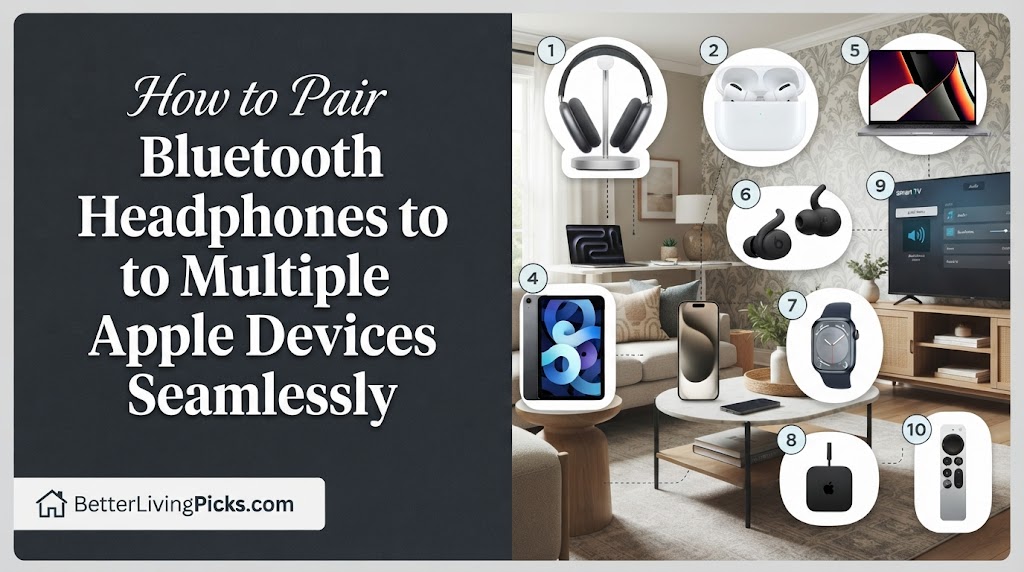
The good news is that if you use AirPods, Beats, or certain modern Bluetooth headphones within the Apple ecosystem, you don’t have to keep doing this. The hardware is designed to “talk” to your iCloud account and follow you from device to device. Here is how to set it up properly and stop the headache of constant manual re-pairing.
How Apple Auto-Switching Actually Works
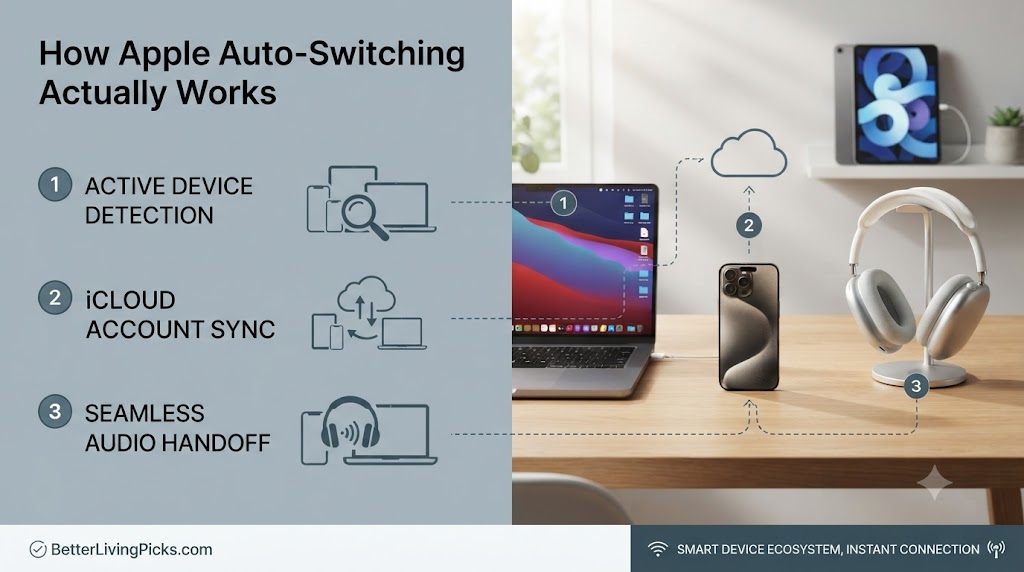
The role of the iCloud account
The magic behind Apple’s seamless audio switching isn’t magic at all, it’s iCloud syncing. When you pair a set of AirPods or compatible Beats headphones with one device, that pairing information is saved to your Apple ID. Your other Apple devices check your account, see the paired device, and automatically add it to their known Bluetooth list.
This is why you don’t need to head back into your settings to “pair” your headphones to every single device you own. As long as you are signed into the same iCloud account on your iPhone, iPad, and Mac, they all “trust” your headphones. This shared key is what allows the audio signal to jump from a movie on your iPad to a phone call on your iPhone without a hiccup.
Which devices support seamless switching
Not every device is created equal when it comes to this feature. To get the best experience, your devices need to support Apple’s H1 or W1 audio chips. This includes:
- AirPods: All generations (including Pro and Max).
- Beats: Models like the Powerbeats Pro, Beats Fit Pro, and Beats Solo Pro.
- System Requirements: Your Mac must be running macOS Big Sur or later, your iPhone/iPad must be on iOS/iPadOS 14 or later, and your Apple Watch must be on watchOS 7 or later.
If you are using a pair of generic Bluetooth headphones, you are stuck with standard pairing. Those devices don’t have the internal handshake protocol to recognize when you’ve started playing audio on a different device in the same ecosystem.
Essential Steps to Enable Multi-Device Syncing
Initial setup requirements
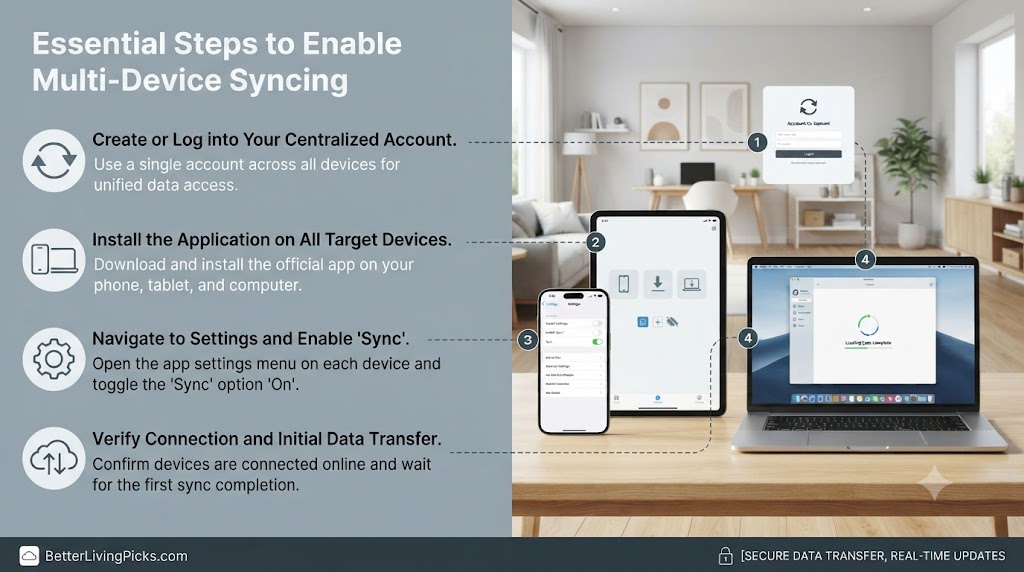
Before you start, make sure you aren’t fighting your own settings. Start by checking that Bluetooth is turned on for every single device you want to use. Then, confirm that all devices are signed into the exact same Apple ID.
Next, ensure that Handoff is enabled. On your iPhone or iPad, go to Settings > General > AirPlay & Handoff and make sure the toggle is green. On your Mac, head to System Settings > General > AirDrop & Handoff. Without Handoff turned on, the system often struggles to “hand off” the audio stream, leaving you frustrated and staring at your Bluetooth menu.
Verifying your device firmware
The most common reason for “glitchy” switching is outdated firmware. Apple pushes updates to headphones silently in the background, but they only do so when your headphones are in their case, near your iPhone, and connected to Wi-Fi.
If your switching feels sluggish or fails entirely, leave your headphones in their charging case near your iPhone for at least 30 minutes while the phone is connected to Wi-Fi. This forces the device to check for and install the latest firmware, which often contains specific patches for handoff stability. You can verify your current version by going to Settings > Bluetooth, tapping the “i” icon next to your headphones, and looking at the About section.
Troubleshooting Common Pairing Failures
When audio doesn’t jump to the active device
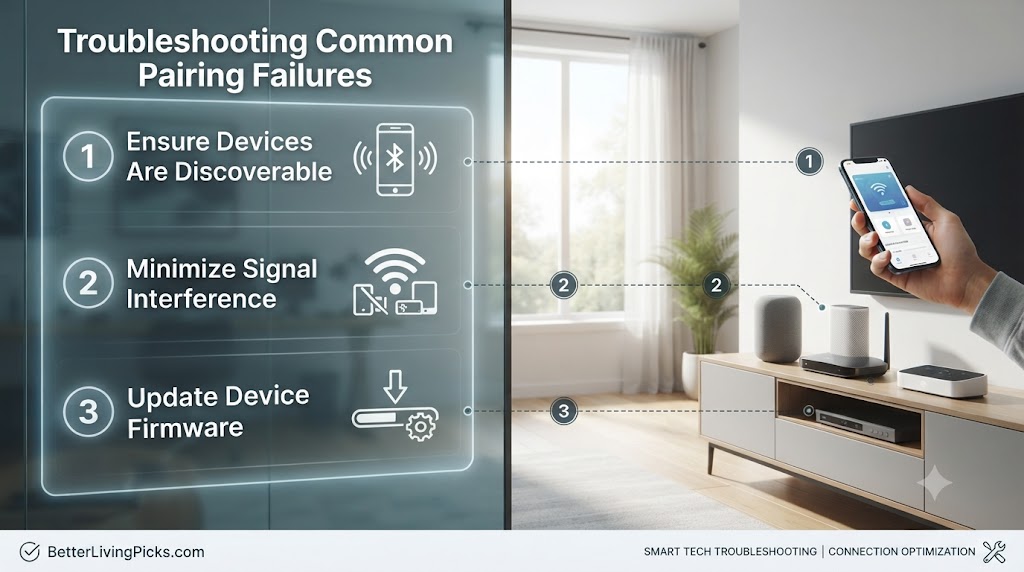
If you press “play” on your Mac but the sound stays stuck on your iPhone, don’t panic. The system works on an audio priority basis. If you have an active media session (like a paused YouTube video or a background app) on your phone, the headphones might “hold on” to that connection because they think you might resume at any second.
The quickest fix is to pause the audio on the device you are currently not using. Sometimes, it also helps to swipe down to your Control Center on your iPhone or iPad and manually select your headphones from the AirPlay audio icon. This forces the “handshake” to trigger manually when the auto-switch decides to go on strike.
Dealing with persistent connection drops
If your audio cuts out frequently, you likely have “Bluetooth noise” or interference. Apple devices are smart, but they are still susceptible to physical distance and crowded wireless environments.
Try to keep your primary device (the one you are actively using) within 5–10 feet of your headphones. If you are working in a crowded office with many other Bluetooth devices, the switching signal can get “drowned out.” Also, ensure you aren’t running an old version of macOS or iOS. Even a small version discrepancy, like running iOS 17.1 on your phone and an ancient version of Monterey on your Mac, can break the link.
How to force-connect manually from the Control Center
When auto-switching refuses to cooperate, you can skip the deep settings menu. On your iPhone or iPad, swipe down from the top-right corner to open the Control Center. Tap the AirPlay icon (the triangle with circles) in the top-right corner of the music widget. You will see a list of available devices, simply tap your headphones from that list. This sends a “force-connect” command that almost always overrides whatever the system was doing previously.
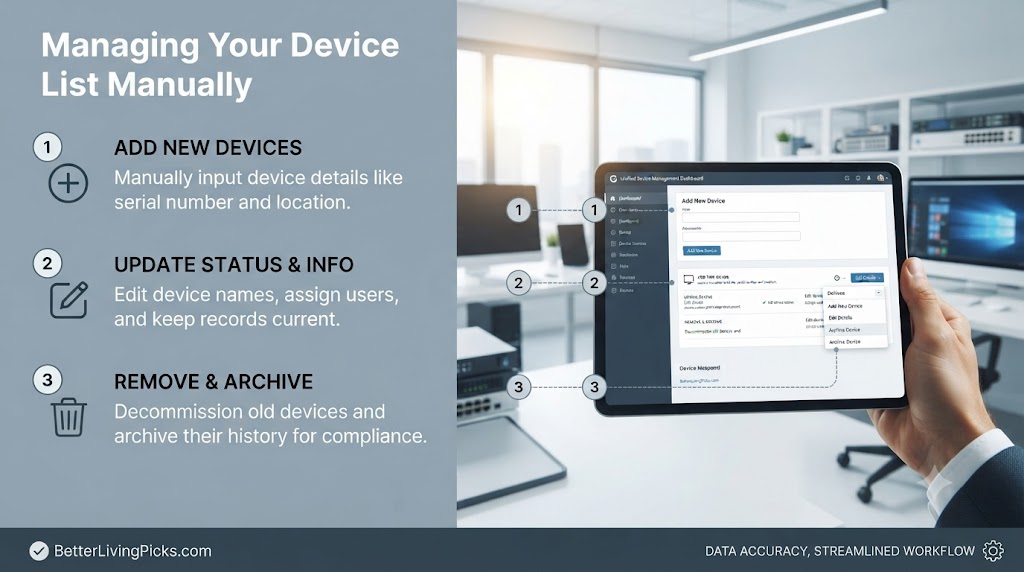
Managing Your Device List Manually
Removing stale devices from your Bluetooth cache
Sometimes your list of devices gets “cluttered” with old hardware you don’t even own anymore. This can confuse the Bluetooth controller. Go through your Bluetooth menu on each device and tap the “i” icon next to old, unused headphones or speakers, then select “Forget This Device.” Clearing out the digital cobwebs helps your active devices communicate more clearly without scanning through a massive list of old connections.
Prioritizing your preferred audio output source
While you can’t officially “rank” your devices in a priority list, the Apple ecosystem prioritizes the device that was last used. If you want your Mac to be your primary audio device, make sure it is the last device you actively played audio through. If you frequently jump between devices, the best way to keep control is to use the AirPlay menu mentioned earlier to manually grab the connection. It becomes a muscle-memory habit within a few days.
What to Do If Auto-Switching Isn’t for You

Disabling the feature to stop unwanted interruptions
Sometimes, the “smart” feature is too smart. If your headphones are jumping to your iPad every time you receive an email notification or a random ad starts playing in a background tab, it’s maddening.
You can turn this off per-device. Go to Settings > Bluetooth, tap the “i” icon next to your headphones, and look for “Connect to this [Device].” Change it from “Automatically” to “When Last Connected to This [Device].” This effectively kills the “auto-jump” feature, forcing the headphones to only connect to that device if you manually select them or if they were the last thing you used.
Using third-party Bluetooth managers
If you use non-Apple headphones that claim to support multi-point, you might find the native switching inconsistent. In these cases, look for the manufacturer’s app (e.g., Sony Headphones Connect or Bose Music app). These apps often have their own internal “multi-point” toggle that manages the connection logic better than your OS can. Always prioritize the manufacturer’s app settings over the standard system Bluetooth menu if you are using high-end third-party gear.
Frequently Asked Questions
Why do my headphones keep switching to my iPad when I’m on my Mac?
This happens because your iPad is likely playing sounds, even silent ones, or has an app active that the system interprets as “active audio.” Close all audio apps on your iPad or turn off Bluetooth on the iPad temporarily to force the connection to remain on your Mac.
Does this work with non-Apple Bluetooth headphones?
Only if those headphones support Bluetooth Multipoint, which allows a device to maintain two active connections simultaneously. Most standard headphones do not support this, so you will have to manually switch them in your Bluetooth settings every time you change devices.
How do I stop my AirPods from connecting to all my devices automatically?
You can restrict this by going to the Bluetooth settings on each specific device. Tap the “i” icon next to your AirPods, select “Connect to this [Device],” and choose “When Last Connected to This [Device]” instead of “Automatically.” You must do this for every device where you want to disable the auto-jump.
Is there a way to prioritize one device over the others?
There is no “master list” where you can rank device priority. The system works on a “last-in” basis. If you want a specific device to have control, the best strategy is to simply initiate playback on that device; it will almost always pull the connection away from whatever was playing before.
Why does my iPhone “steal” the connection during a Mac call?
The Apple ecosystem is designed to prioritize phone calls. If a call comes in on your iPhone, the system is programmed to prioritize that connection above all other media. This is a safety feature to ensure you never miss a call, though it can be frustrating if you are in the middle of a meeting on your Mac.
What is the firmware update process for Apple headphones?
Firmware updates for AirPods and Beats are silent and automatic. Keep your headphones in their case, ensure the case is near your iPhone, and make sure your phone is connected to Wi-Fi. They will update themselves in the background over time; there is no manual “update” button to click.
Final Thought
Mastering the way your headphones hop between devices makes a huge difference in your daily workflow. Once you understand that the system relies on your iCloud account and “last-used” logic, it stops feeling like a random technical glitch and starts feeling like the helpful tool it was designed to be. If it’s still driving you crazy, don’t hesitate to use the per-device settings to lock things down—there is no shame in choosing a stable, manual connection over a “smart” one that gets it wrong

