

Immediately elevate the back of your laptop by an inch or two to allow air to circulate underneath. Closing resource-heavy apps and switching to a power-saver mode will also reduce heat output within seconds.
2. Does a laptop cooling pad actually work?
Yes, but only if your laptop has intake vents on the bottom. They help by pushing cooler air directly into the machine, which is especially useful when the ambient room temperature is already high.
3. Is it safe to use a laptop in a hot room?
It is safe for short periods, but sustained heat shortens battery life and risks permanent damage to internal components. Always ensure the laptop is on a hard, flat surface to keep the exhaust ports clear.
4. Why does my laptop fan run constantly?
The fans run because the CPU is working hard or the air vents are clogged with dust. Clean the vents with compressed air and check your Task Manager to stop background programs that are eating up system resources.
There is nothing more frustrating than trying to work when your laptop fans are screaming and your keyboard feels like a hot plate. When you are in a room that is already warm, your computer loses its primary way of shedding heat, relying on the surrounding air to act as a coolant. Once your internal components hit a certain temperature, the system forces “throttling,” which slows down your processor to stop it from frying itself.
You do not need an expensive liquid-cooling setup to handle this. Most heat issues come down to simple physics and blocked airflow. By making a few minor adjustments to how your machine sits on your desk and how you manage its software load, you can significantly drop those internal temperatures. These steps will stop the lag, keep your components happy, and make working in a warm room much more bearable.
Elevate Your Laptop for Better Airflow

The most common mistake people make is placing their laptop directly on a desk, a blanket, or their lap. Most modern laptops pull cool air through vents located on the bottom and push hot air out through the back or sides. When you place the device flat against a surface, you are essentially choking it. There is almost no space for the intake fans to grab air, so they just recycle the same hot air trapped between the desk and the chassis.
The Problem with Flat Surfaces
Even if you have a “hard” desk, the clearance is usually only a few millimeters. This creates a heat pocket. In a warm room, this is amplified because the desk surface itself absorbs heat from the laptop, creating a cycle where your machine is constantly sitting on a warming pad. You will notice that your fan speed remains high even when you aren’t doing heavy work because the system is struggling to fight the stagnant air.
DIY Methods vs. Dedicated Laptop Stands
You do not need to buy a fancy piece of equipment to fix this right now. You can test this by placing a small book or even two sturdy erasers under the rear edge of your laptop. Ensure you do not block the actual vent openings. By lifting the back just an inch, you allow air to flow freely underneath the entire bottom plate.
Dedicated laptop stands are a better long-term investment. Look for ones that use an open-frame design rather than a solid tray. An open-frame stand provides the best possible airflow and naturally puts the laptop at a better ergonomic angle for typing. Avoid using your laptop on your bed or couch at all costs, as fabric acts as an insulator and will trap heat almost instantly.
Optimize Internal Performance Settings

If your hardware is clean but the laptop is still running hot, your operating system might be pushing the processor harder than necessary. High-performance modes in Windows or macOS often allow the CPU to draw more power, which directly correlates to more heat.
Adjusting Windows Power Plans for Heat Reduction
Check your power settings. If you are set to “Best Performance” or “High Performance,” your computer is likely running the CPU at maximum clock speed, even for simple tasks. Switch to “Balanced” or “Power Saver” mode. You will notice the temperature drop almost immediately as the system limits the voltage sent to the processor. This is a massive help when you are working in a warm room and do not need raw rendering power.
Closing Background Resource Hogs
Many apps run in the background without you knowing. Open your Task Manager (Ctrl+Shift+Esc) or Activity Monitor on Mac and look at the CPU usage column. You might find a web browser tab you forgot about or an update service eating up 20% of your processing power. Kill those processes. The less work the CPU has to do, the less heat it generates, regardless of how hot the room is.
Maintaining a Clean Hardware Environment
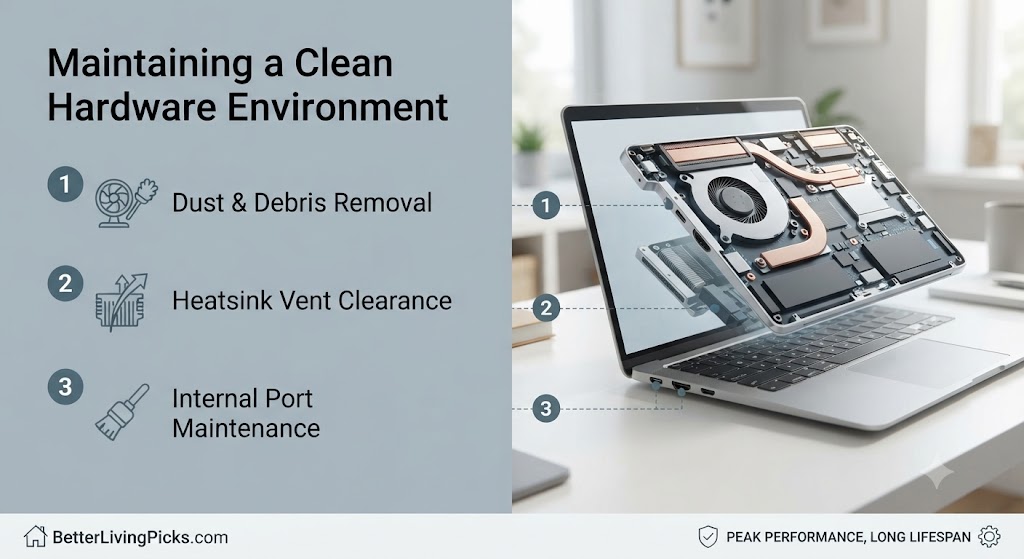
Dust is the silent killer of laptop cooling. Over time, fans pull in air and, along with it, tiny particles of dust, pet hair, and lint. This debris gets stuck in the heat sink the small metal fins where the heat is supposed to escape. When those fins are clogged, air cannot pass through, and your laptop overheats even in a cool room.
Why Dust Accumulation Kills Airflow
Think of a heat sink like a radiator in a car. If you cover a radiator in a thick blanket of dust, it cannot dissipate heat. Your laptop is exactly the same. Even a thin layer of dust on the fan blades can reduce their efficiency, forcing them to spin faster and louder to move the same amount of air. If your laptop is more than a year old and you have never cleaned it, this is likely the main culprit.
Safe Methods for Clearing Vents
You should clean your vents every few months. The safest way is to use a can of compressed air. Always power off your laptop completely before doing this. Aim the nozzle at the side or rear vents and give it short, sharp bursts of air. You might see a cloud of dust puff out that is a good sign. Do not hold the fan blades still with a pin or tool; let them spin if the air makes them move, as they are designed for it. Avoid using a vacuum cleaner, as the static electricity can damage sensitive internal components.
Managing Your Environment in Warm Rooms

If the room is naturally hot, you have to be more intentional about where you place your machine. Physics dictates that heat flows from hot to cold, so you need to create the biggest possible temperature difference between the air and your laptop.
Positioning Relative to Airflow
Never place your laptop in direct sunlight. Even if you are indoors, sunlight through a window can heat the chassis significantly. Try to position your laptop near a natural draft, like an open window or a doorway where there is some air movement. Even a slight breeze can help carry away the heat exhausted from the rear of the machine.
Utilizing External Desk Fans
If you are stuck in a warm room for a long time, a simple USB desk fan is a lifesaver. You do not need to point it at yourself; point it toward the intake vents or the back of the laptop where the heat is being pushed out. By manually forcing cooler air into the intake or helping pull hot air away from the chassis, you can significantly assist the internal fans. It is an old-school trick, but it is extremely effective.
When to Consider Active Cooling Solutions

If you are a gamer, video editor, or programmer, simple airflow improvements might not be enough during the summer months. This is when “active” cooling comes into play.
Cooling Pads: Do They Really Help?
A cooling pad is essentially a stand with built-in fans. If your laptop has bottom intake vents, these can lower temperatures by a few degrees. Do not expect miracles; they usually drop temps by about 3–5 degrees Celsius, but that can be the difference between a system that throttles and one that stays smooth. Choose a model where the fans align with the air intake vents on the bottom of your specific laptop.
Vacuum Coolers and Their Limitations
Vacuum coolers attach directly to the exhaust vent of your laptop and “suck” the hot air out. They are very aggressive and can be quite loud. While they are very effective at lowering CPU temperatures, they can sometimes put excessive strain on your laptop’s internal fan bearings by pulling air faster than the fan is designed to spin. Use them as a last resort for heavy-duty tasks, and be careful not to run them at max power for too long.
Frequently Asked Questions
Can I use a cooling pad on a non-vented laptop?
A cooling pad will do almost nothing for a laptop that does not have intake vents on the bottom. The fans will just blow air against a solid plastic or metal case, which will not effectively cool the internal components. You are better off using a simple stand to improve natural convection.
Should I put my laptop in the fridge to cool it down?
Absolutely not. Never put your laptop in a fridge or freezer. When you take it out, the rapid temperature change will cause condensation to form inside the machine. Water and electronics are a recipe for short circuits and permanent motherboard damage.
How do I know if my laptop is throttling?
You will feel a sudden, sharp decrease in performance. Videos might stutter, your mouse cursor may lag, or your game’s frame rate will drop significantly. You can use free software like HWMonitor to check your CPU temperatures; if you see temperatures consistently hitting 95-100°C, your system is likely throttling.
Does a laptop stand help with battery life?
Yes, indirectly. High heat is the primary enemy of lithium-ion batteries. By keeping the internal temperature lower, you reduce the thermal stress on the battery cells. This helps maintain the battery’s capacity and health over a much longer period of time.
Is it normal for my laptop to be hot during charging?
It is common for a laptop to get warm while charging because the battery is drawing power and generating its own chemical heat. However, it should not be “hot to the touch.” If it becomes uncomfortable to hold or the fans start spinning loudly just from charging, check your ventilation.
Can software fix overheating?
Software cannot physically move air, but it can stop the system from generating excess heat. Undervolting your CPU using specialized software can reduce power consumption and heat output, but this is an advanced technique that requires research to avoid system instability.
Final Thought
Keeping your laptop cool is not about spending a fortune on accessories; it is about respecting the airflow your machine needs to function. By simply elevating your device, keeping your vents clean, and managing background tasks, you can prevent the most common heat-related issues before they ever happen. These small habits preserve your hardware, keep your performance snappy, and ensure your laptop stays reliable for years to come. Take a few minutes today to check your setup, your laptop will thank you.