Simply power off the robot, wait 30 seconds for the internal capacitors to discharge, and turn it back on. Then, force-close your mobile app and restart your router to clear any temporary communication glitches.
2. Does a factory reset delete everything?
Yes, a factory reset wipes all saved data, including your custom floor maps, no-go zones, and cleaning schedules. You will have to set up the device from scratch as if it were brand new.
3. What if my vacuum won’t reconnect?
Ensure your phone is connected to a 2.4GHz Wi-Fi band, not 5GHz, as most models do not support 5GHz frequencies. Verify your Wi-Fi password is correct and your signal strength is strong enough at the dock.
4. When is a hard reset necessary?
Only use a hard reset as a last resort if the vacuum consistently shows as offline, refuses to pair with the app, or exhibits persistent software bugs after you have already tried a soft restart.
There is nothing more frustrating than settling onto your sofa for a relaxing evening, only to receive a sharp notification on your phone that your robot vacuum is “offline” just as it should be starting its scheduled evening clean. You rely on these smart devices to save you time and keep your floors spotless, so when they lose their connection, it disrupts your entire household routine and leaves you wondering why the technology decided to fail at the worst possible moment.
Fortunately, most connectivity issues are minor software hiccups or environmental interference that you can resolve in just a few minutes. Whether you are dealing with a simple network drop, an app-side error, or a persistent pairing failure, performing a systematic reset is almost always the fastest and most reliable path to getting your robotic companion back online and moving again.
Why Your Robot Vacuum Keeps Dropping Wi-Fi

Common Environmental Interference
Robot vacuums communicate through your local network, and your home environment plays a significant role in signal stability. Thick concrete walls, large metal appliances like refrigerators, or being positioned too far from your wireless router can significantly degrade the connection. If your vacuum docks in a secluded closet or a basement corner, it might struggle to maintain a consistent handshake with your router, leading to intermittent “offline” errors.
Router Settings and Firmware Updates
Sometimes the culprit is your networking hardware rather than the vacuum itself. If your home router received an automatic firmware update overnight, it might have tweaked its security protocols or channel settings to a configuration that your vacuum no longer recognizes. Additionally, many modern routers use “band steering,” which automatically switches devices between 2.4GHz and 5GHz. Because most robot vacuums only operate on the 2.4GHz band, this automatic switching can cause the vacuum to drop the connection entirely when the router pushes it toward an incompatible frequency.
App Cache and Connectivity Glitches
Your smartphone app acts as the essential bridge to your vacuum. Sometimes the app stores corrupted cache files or fails to refresh the status of the device, making it think the robot is offline when it is actually docked, charged, and ready. If the app displays an error icon despite the vacuum showing a solid “ready” light on its control panel, a simple app restart is usually the first step to clearing the visual confusion.
Hidden Network Congestion
If you have a large number of smart devices in your home, such as smart light bulbs, security cameras, and smart plugs, your router’s 2.4GHz band might be overcrowded. Each device requires a small slice of bandwidth, and when a vacuum tries to connect in the middle of this traffic, it may be dropped by the router. Managing your device load or creating a separate Guest Network for your smart home gadgets can sometimes prevent these connection drops from occurring in the first place.
Power Cycling the Robot
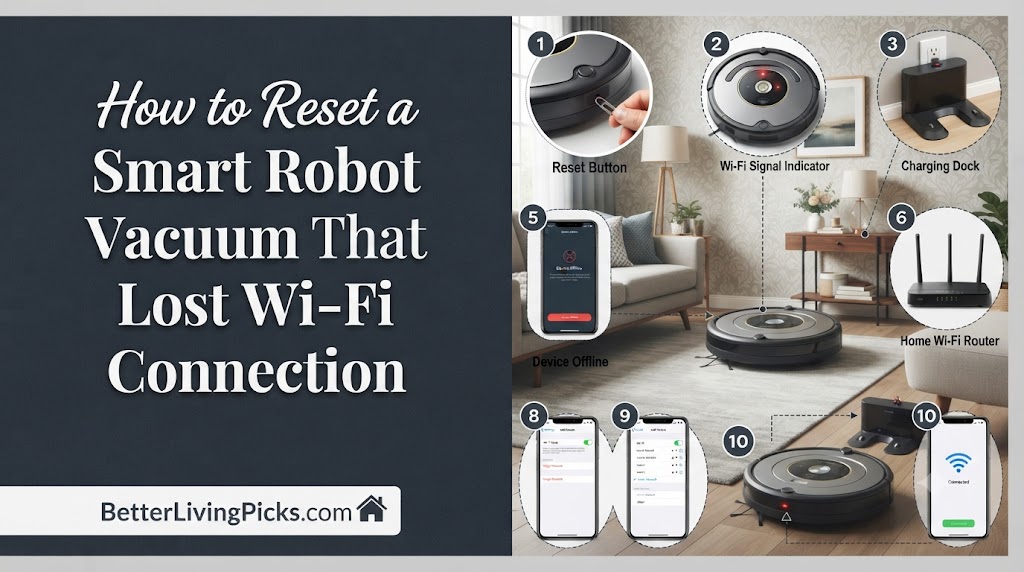
Most robot vacuums feature a physical power switch, usually tucked away on the side of the chassis or under a protective top cover. To perform a proper power cycle, flip the switch to the OFF position. Crucially, do not just flip it back on immediately; wait for at least 30 to 60 seconds. This duration allows the internal capacitors to fully discharge, which effectively clears the volatile memory of the robot’s Wi-Fi module. After the waiting period, flip it back to ON and allow it to boot up for a full minute before checking your app.
Refreshing the Mobile App
If the robot is physically active but the app still insists it is offline, you need to force-close the app entirely. Simply hitting the “home” button on your phone is not enough; you must use the app switcher to swipe the application away completely. On modern Android or iOS devices, this clears the temporary state from your device’s memory. Re-opening the app forces it to perform a new, clean handshake with the vacuum, which is often enough to restore control without losing any of your saved settings.
Rebooting Your Home Router
If your phone is connected to the internet, but the vacuum remains unresponsive, your router may be the bottleneck. Unplug the power cable from the back of the router, wait a full 60 seconds, and then plug it back in. Allow the router to cycle through its startup sequence, which can take up to five minutes. This process clears out any hung connections or IP address conflicts that might be preventing the vacuum from “seeing” the network. Once the internet light on the router is stable, try connecting to your vacuum again.
Checking the Docking Station
Sometimes, the issue isn’t the Wi-Fi at all, it’s the power delivery. If the charging pins on the back of the dock or the bottom of the vacuum are dirty, the vacuum might be in a “sleep” state to conserve energy because it isn’t receiving a charge. Clean the metal contacts with a soft, dry cloth or a cotton swab dipped in a tiny amount of rubbing alcohol. Once the vacuum senses a stable charge, its Wi-Fi antenna will wake up automatically.
Performing a Hard Factory Reset
Locating the Reset Button
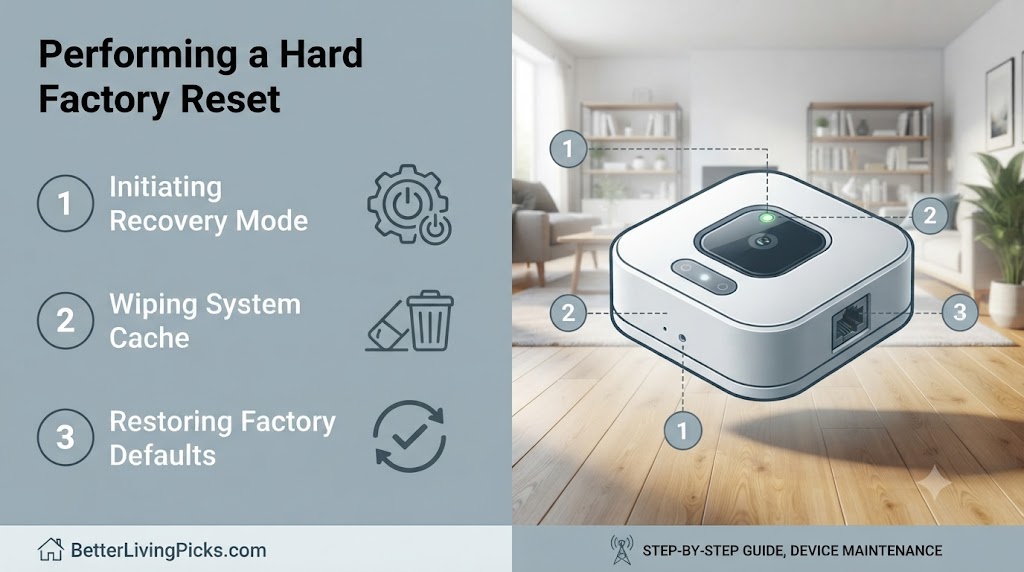
A hard reset is significantly more invasive than a standard power cycle. You will need to find the recessed reset button, which is typically hidden inside the dust bin compartment or on the side of the unit. This button is almost always small enough that you will need a paperclip or a specialized pin tool to press and hold it. Ensure the robot is on its dock or powered on, then hold the button for 10 to 15 seconds. You should see the status lights flash or hear an audible chime, indicating that the device is wiping its internal memory.
The Consequences of a Hard Reset
It is vital to understand that a hard reset turns your robot back into a brand-new device. You will permanently lose all saved data. This includes your custom floor maps, specific room naming labels, pre-configured no-go zones, and any cleaning schedules you painstakingly set up. Because the robot essentially forgets the layout of your home, you will have to set it to “Auto-Clean” or “Mapping Mode” for several full cycles to rebuild the floor plan from scratch.
When to Avoid a Hard Reset
Do not rush to perform a hard reset if you only have a minor connection drop. Because it forces you to spend hours re-mapping your entire home, it should be treated as a last resort. If you have a complex floor plan with many virtual boundaries, the effort required to rebuild those settings is substantial. Only choose this path if soft resets, router reboots, and app reinstalls have failed repeatedly, as it is the “nuclear option” for connectivity issues.
Preparing for Data Loss
Before you proceed with a hard reset, take a screenshot of your current settings in the app if you can. If the app allows you to export your map, do so. While the reset will wipe the vacuum’s internal brain, having a record of your no-go zones and room divisions will make the re-configuration process much faster once the vacuum is back online.
Reconnecting Your Vacuum After a Reset

Putting the Vacuum into Pairing Mode
After a hard reset, the vacuum will usually enter “Pairing Mode” automatically. This state is typically indicated by a flashing Wi-Fi LED, which might blink in a different color or pattern than when it is connected. If the light does not flash, consult your user manual; some models require you to hold the “Home” and “Spot Clean” buttons simultaneously for five seconds to manually trigger the broadcast signal that your phone needs to find.
Troubleshooting Initial Pairing Failures
If your app cannot find the vacuum during the discovery phase of the setup, your phone’s configuration is likely to blame. First, ensure your phone is connected to a 2.4GHz Wi-Fi network. Second, ensure you have enabled Location Services for the app. Even if it seems unnecessary, the app needs location access to “see” local Wi-Fi devices. If you are using a VPN, turn it off immediately; VPNs reroute your traffic and effectively hide the vacuum from your phone’s local discovery scan.
Finalizing Setup in the App
Once the app discovers the robot, it will request your Wi-Fi credentials. Double-check your Wi-Fi password. It is incredibly common to mistype it during the stress of troubleshooting. If the setup fails at the “Registering Device” stage, try moving your phone and the vacuum closer to your router for the duration of the pairing process. Once the handshake is confirmed, you can return the vacuum to its usual docking location.
Updating Firmware Post-Reset
Immediately after a successful reconnection, the app will likely prompt you to perform a firmware update. Do not ignore this. Often, a factory reset reverts the firmware to an older factory version that may be less stable. Updating to the latest version will often patch the very connectivity bugs that caused your problem in the first place, ensuring a smoother experience moving forward.
Pro Tips for a Stable Connection

Assigning a Static IP Address
If you are comfortable with basic network management, logging into your router’s administrative page to assign a Static IP address is a game changer. By default, routers use DHCP to assign IP addresses, which change periodically. If the vacuum’s address changes, the app might lose track of it. By “reserving” or “assigning” a specific IP to the vacuum’s MAC address, you ensure the connection remains stable regardless of how many other devices are on your network.
Optimizing Router Placement
If your home is large, your vacuum is likely struggling with distance. If your vacuum docks on the far side of your home, it might be behind a wall that is effectively a dead zone for your Wi-Fi signal. Consider installing a Wi-Fi mesh node or a repeater within 10 to 15 feet of your vacuum’s dock. A consistent signal strength of -60 dBm or better is ideal for keeping smart home devices reliably connected to your network.
The 2.4GHz vs 5GHz Conflict
This is the single most common cause of connectivity issues. Most smart home devices, including robot vacuums, rely on 2.4GHz because it has a longer range and better wall-penetration capabilities than 5GHz. If your router has “Smart Connect” enabled (where both 2.4GHz and 5GHz use the same name/SSID), the vacuum will struggle. If you continue to have issues, log into your router settings and create a dedicated 2.4GHz-only Guest Network, and connect your vacuum exclusively to that.
Keeping the App Updated
Beyond the vacuum firmware, ensure the app on your phone is always running the latest version. Developers frequently release updates that improve how the app handles network handshakes and “offline” reporting. A simple update in the App Store or Google Play Store can often resolve issues that seem like hardware faults but are actually just outdated software code.
Frequently Asked Questions
Will a reset delete my saved maps?
Yes, a factory hard reset will completely erase your saved floor maps, custom virtual zones, and personalized cleaning schedules. You will need to start the mapping process from scratch once the device is back online.
How often should I need to reset my vacuum?
You should rarely need to reset your vacuum. If you find yourself needing to do it every week, there is likely a deeper issue with your Wi-Fi signal strength, your router’s performance, or a failing internal Wi-Fi chip that cannot maintain a connection.
Why can’t my phone find the vacuum during setup?
This is almost always due to the phone being connected to a 5GHz Wi-Fi network instead of 2.4GHz. Ensure your phone is on the 2.4GHz band, and verify that the app has permission to access your local network and location services.
Does a hard reset fix battery charging issues?
No, a hard reset only addresses software and connectivity bugs. If your vacuum is not charging, check the charging contacts on the base and the bottom of the robot. If they are dirty, clean them with a dry cloth or a bit of rubbing alcohol to restore the electrical connection.
What if my robot still shows as offline after a reset?
If you have done a complete factory reset and the unit still shows offline in the app, the vacuum’s internal Wi-Fi module might be failing. Contact the manufacturer’s support team, as the hardware may need to be replaced or repaired under warranty.
Can I reset my vacuum if the buttons are broken?
Most modern apps provide a “Reset” or “Remove Device” option within the settings menu. If your physical buttons are broken, try removing the device from your account in the app, deleting the app, and re-adding the vacuum as a new device to trigger a fresh pairing cycle.
Can I reset my vacuum if the buttons are broken?
Getting your robot vacuum back on track does not have to be a headache-inducing experience. Usually, a simple power cycle is all it takes to get things moving again and restore your connection to the cloud. If you do have to resort to a full factory reset, just take a deep breath, re-map your home, and enjoy the convenience of that hands-free cleaning once more. You have got this, and with a stable connection, your home maintenance will be back to effortless status in no time!