This is typically a frequency mismatch. Ensure your smartphone is connected to a 2.4GHz Wi-Fi network during setup, as most smart plugs are incompatible with 5GHz bands.
2. Is the manufacturer’s app necessary?
Yes, always set up the device in the manufacturer’s app first. This registers the plug on the brand’s cloud server, which is the only way the Alexa Skill can later discover and control it.
3. How do I resolve repeated pairing failures?
Perform a factory reset. Unplug the device, wait 10 seconds, and hold the physical power button while plugging it back in until the indicator light begins flashing rapidly.
4. How can I stop “Device Unresponsive” errors?
First, power cycle the plug by unplugging it for 30 seconds. If the error persists, check the manufacturer’s app to ensure the plug maintains a stable connection to your home router.
There is nothing quite as frustrating as buying a sleek new smart plug, only to spend your entire evening watching a tiny LED light blink in a pattern you don’t understand. We have all been there. You want to automate your lamps or coffee maker, but the device refuses to show up in your Alexa app, or it drops off the network the moment you walk away. This isn’t usually a hardware defect; it is almost always a small, overlooked handshake issue between your 2.4GHz Wi-Fi band, the manufacturer’s cloud, and the Alexa skill environment.
This guide is designed to be your definitive, step-by-step companion. We are going to move beyond the basic manual instructions and get into the actual “how-to” that works in the real world. We will cover everything from the pre-flight checks that save you hours of guesswork, the precise order of operations for pairing, and the specific troubleshooting tactics that solve 99% of connectivity failures. Let’s get your smart home working for you, not against you.
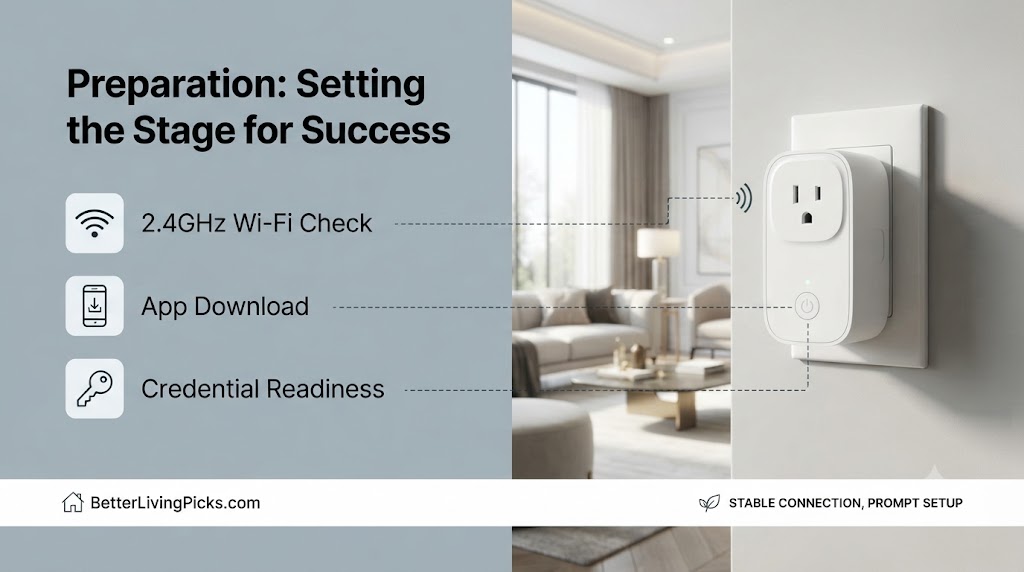
Preparation: Setting the Stage for Success
The 2.4GHz Wi-Fi Reality
Most smart home devices are built with basic, low-power radio chips. These chips are designed to communicate exclusively on the 2.4GHz frequency. While 5GHz is great for streaming high-definition video on your laptop, it is actually a liability for smart plugs. The signal range is shorter and struggles to penetrate walls. If your router uses “Smart Connect” to merge 2.4GHz and 5GHz into a single network name (SSID), your phone might be trying to “talk” to the plug on the wrong frequency during the handshake. To fix this, log into your router settings and temporarily disable the 5GHz band. Once the plug is set up and “known” to the cloud, you can turn 5GHz back on.
Gathering Your Credentials
Before you head to the wall outlet, ensure you have your Wi-Fi password ready. Also, have your manufacturer’s app downloaded and create your account beforehand. You don’t want to be fumbling with email verification codes while you are hunched over behind a sofa trying to plug in a device. Make sure your Bluetooth is turned on as well; many modern smart plugs use Bluetooth to simplify the initial discovery process between your phone and the plug.
Why Proximity Matters During Setup
You might want to install your plug in the garage or at the back of the patio eventually, but don’t start there. For the initial pairing, plug the device into an outlet within 10 feet of your router. This eliminates signal interference and packet loss as potential variables. Once the “Success” message appears in your app, you can move it to its permanent location. If it doesn’t work in the new spot, you know immediately that the issue is the Wi-Fi signal range in that specific room, not a broken plug.
Step-by-Step Connection Guide
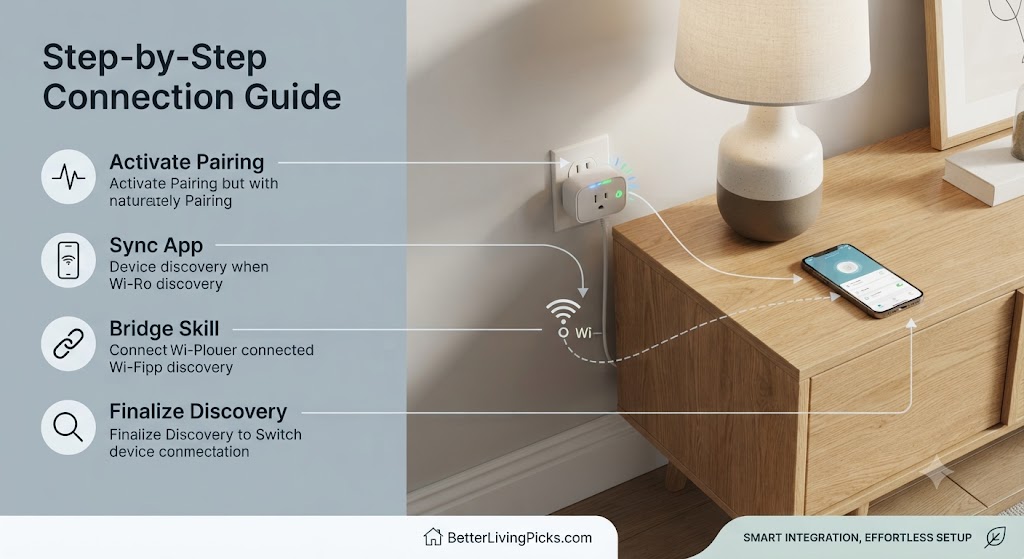
Putting the Plug in Pairing Mode
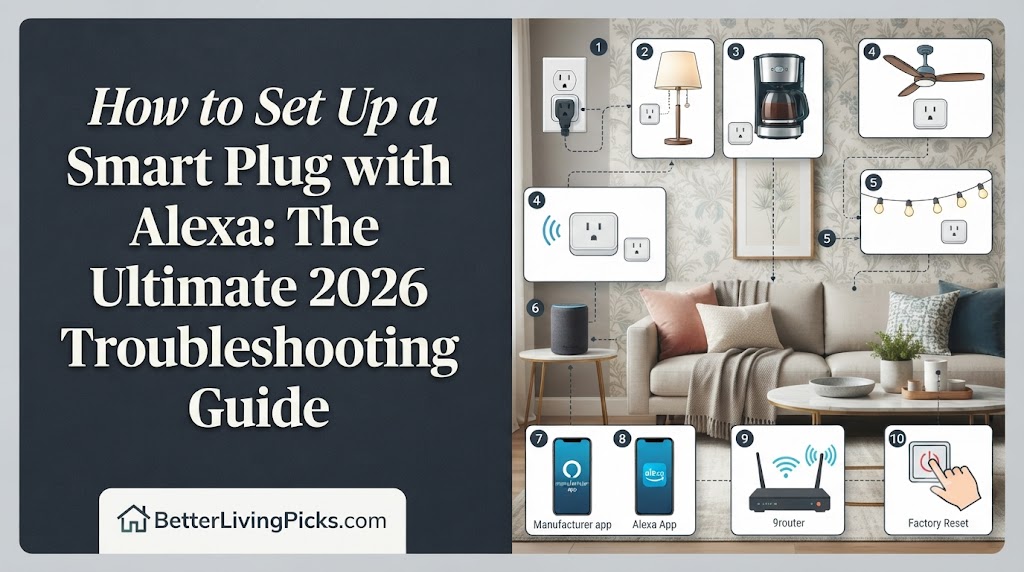
Every smart plug has a “heartbeat.” This is the blinking LED that tells you it is waiting for instructions. If the light is solid, it is in normal operation mode and will be invisible to your app. Locate the power button, it is usually on the side or the face of the plug. Press and hold this button for roughly 5 to 10 seconds. You will notice the light change from solid to a rapid, steady pulse. This pulse is your “go” signal.
The Manufacturer’s App Handshake
Open the app associated with your specific brand. Tap the “+” button in the corner and select “Add Device.” The app will scan for your plug. Once it finds it, you will be prompted for your Wi-Fi details. Enter them carefully. If you have a long, complex password, copy it into a notes app and paste it into the password field to avoid typos. If the app displays a “Connection Failed” message, do not just click retry. Force-close the app, reopen it, and make sure your phone is still connected to the 2.4GHz network.
Linking the Alexa Skill
Once the plug is functional in the manufacturer’s app, you are halfway there. Open the Alexa app. Go to More (bottom right) and then Skills & Games. Search for your brand name. Tap “Enable to Use.” This will open a browser window asking you to sign in with the account you just created for the manufacturer’s app. This authorization step is the “bridge.” Once you log in, Alexa will ask for permission to control your devices. Say yes.
Final Discovery
After the link is established, Alexa will ask to “Discover Devices.” Let it run the full 45-second scan. If it doesn’t find the plug automatically, don’t worry. Go to the Devices tab in the Alexa app, hit the “+” icon in the top right, select “Add Device,” and choose “Plug” from the list. Choose your brand, and it will often pull the device in instantly because you’ve already linked the account.
Troubleshooting Common Setup Nightmares
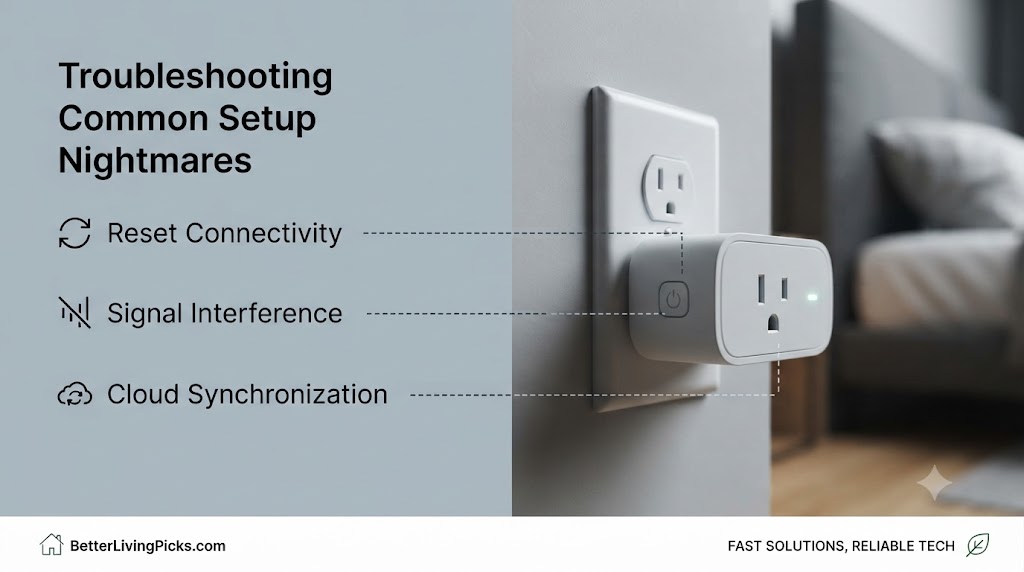
Dealing with “No New Devices Found”
This is the most common point of failure. If the Alexa app refuses to see the device even after the skill is enabled, the issue is usually an account desync. Try this: disable the Alexa Skill in the app, wait 60 seconds, and then re-enable it. This forces the Alexa cloud to re-fetch the list of devices associated with your manufacturer account. Also, check the manufacturer’s app to ensure the plug is listed as “Online.” If it says “Offline” in the original app, Alexa will never be able to see it.
When the Plug Drops Connection Frequently
If your plug works for a few hours and then goes “unresponsive,” you are likely dealing with Wi-Fi channel congestion. Most routers default to the same Wi-Fi channels (typically 1, 6, or 11). If your neighbors are also using those channels, your plug might be getting “drowned out.” Log into your router and manually set the 2.4GHz channel to something less crowded, or simply restart your router. A router power-cycle often refreshes the DHCP leases, which helps smart devices reconnect more reliably.
Handling “Device Unresponsive” Errors
When Alexa says, “The device is unresponsive,” it means she sent a command, but the plug didn’t acknowledge it. Before you delete the device and start over, try the “Power Cycle” method. Pull the plug out of the wall, wait for a full 30 seconds (this drains the capacitors), and plug it back in. This forces the plug to reboot and re-negotiate its connection with your router. In 80% of cases, this is all it takes to get it back online.
Advanced Practices for Smart Home Control
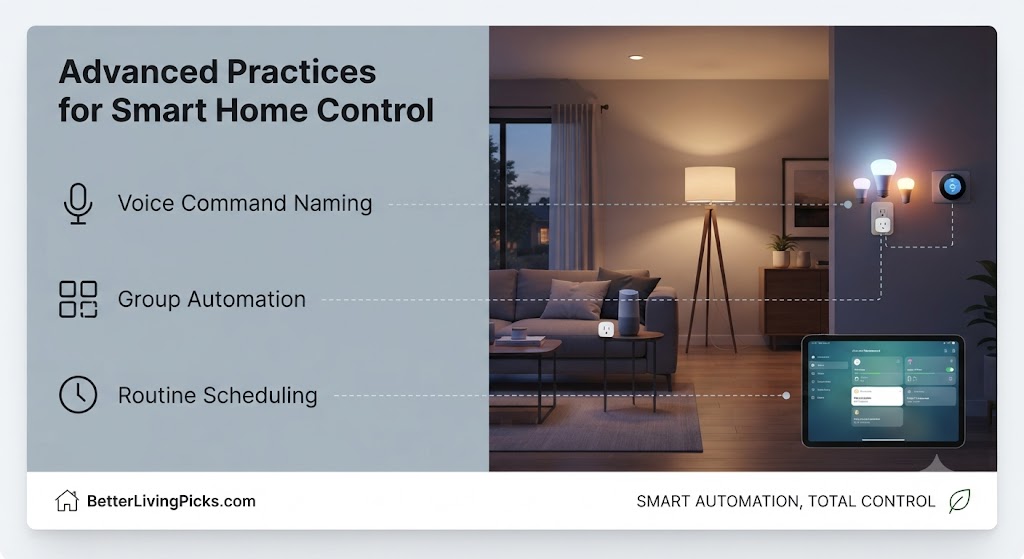
The Art of Naming Your Devices
The name you give your plug determines how easy it is to use. Alexa is very sensitive to ambiguous naming. If you have a lamp in the bedroom and a lamp in the living room, simply calling them both “Lamp” will result in the “Which one?” response every single time. Use descriptive, unique names: “Reading Light,” “Dresser Lamp,” or “Coffee Maker.” If you have multiple plugs for holiday lights, consider names like “Tree Lights” and “Front Porch Lights.”
Mastering Alexa Groups and Rooms
You don’t have to trigger each plug individually. If you have four smart plugs in your living room, you should be using Alexa Groups. Go to the Devices tab in your Alexa app, tap the “+” sign, and select “Add Group.” Name it “Living Room.” Add all your living room plugs to this group. Now, you can simply say, “Alexa, turn off the living room,” and every device in that group will turn off simultaneously. It is much cleaner than creating a dozen individual routines.
Utilizing Routines for True Automation
Plugs aren’t just for voice control; they are for scheduled tasks. Use the Routines section in the Alexa app to create “If-This-Then-That” scenarios. For example: “If I say ‘Alexa, goodnight,’ then turn off the living room lamps and turn on the bedroom fan.” You can also set time-based routines, such as turning on your coffee maker at 7:00 AM every weekday. This turns a simple piece of hardware into a personal assistant.
Frequently Asked Questions
Why is my Alexa app not finding my smart plug?
This is usually caused by the “discovery” process being interrupted or a failure to link the manufacturer’s skill properly. Check the “Skills & Games” menu to ensure the correct skill is enabled, then try the manual “Add Device” flow in the Devices tab.
Do I really need the manufacturer’s app if I have Alexa?
Yes, absolutely. The manufacturer’s app is responsible for the low-level communication and firmware management of the plug. Alexa simply acts as a remote control that talks to the manufacturer’s cloud. Without the initial app setup, the cloud server doesn’t know your plug exists.
Will my smart plug work if my Wi-Fi goes down?
No, the plug requires a constant internet connection to the manufacturer’s cloud to process commands from Alexa. However, the physical power button on the side of the device will always work as a manual override, regardless of your internet status.
Can I use a smart plug with a 5GHz network?
In almost all cases, no. Smart plugs are built with budget-friendly Wi-Fi modules that lack support for 5GHz bands. You must connect your phone to the 2.4GHz network during the setup process to successfully transfer the configuration to the plug.
How do I update my smart plug firmware?
Firmware updates should be checked inside the manufacturer’s app (e.g., Kasa, Govee Home, Smart Life). Look for a “Device Info” or “Settings” menu within the specific device profile. Keeping firmware current often fixes bugs that cause connectivity drops.
Can I control my plug while away from home?
Yes, you can. Because the device is tied to your account in the cloud, you can use the Alexa app from anywhere in the world, even on cellular data to toggle your plugs. If it works in the app while you are away, it will work with your voice commands.
Wrapping Up Your Smart Home Journey
Setting up a smart plug might seem like a simple task, but as you have seen, it involves a few moving parts that all need to align perfectly. By focusing on your 2.4GHz network stability, properly linking your manufacturer accounts, and taking the time to organize your devices into groups, you are building a foundation for a truly automated home. Don’t feel discouraged if you hit a snag; simply use the reset procedures and connection checks outlined above. Once you master the process, you’ll find that expanding your smart home becomes significantly easier. Enjoy the comfort of controlling your environment with nothing more than your voice.