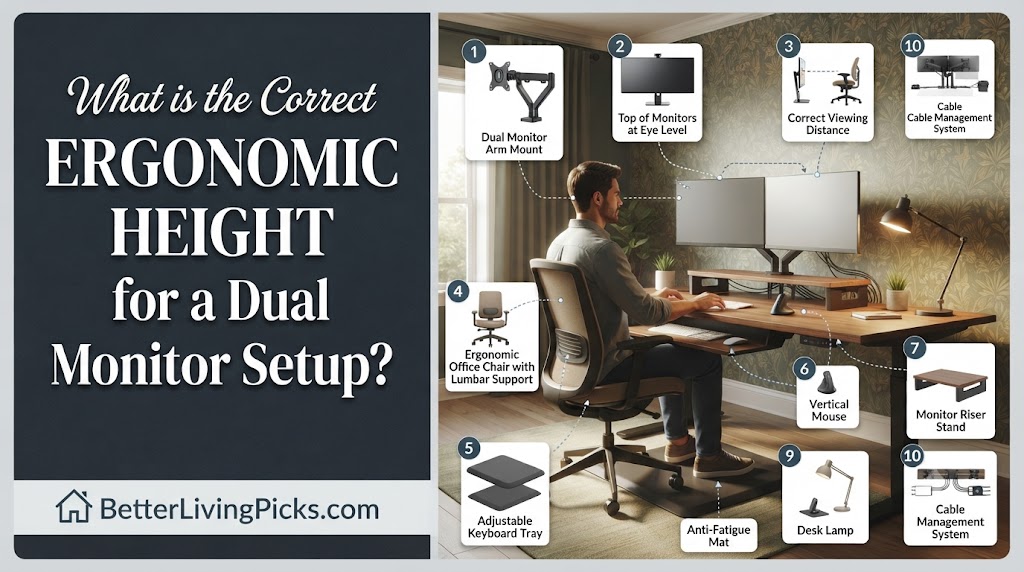
Position the top third of your screens at or slightly below your direct eye level. This prevents you from tilting your head upward or hunching down during long work sessions.
2. How far should screens be from my eyes?
Place monitors about an arm’s length away. This distance is the sweet spot for visual clarity, reducing the need to lean forward and strain your back to read small text.
3. How do I position dual screens for comfort?
Place the primary monitor directly in front of you and the secondary screen angled inward at 30 degrees. This minimizes excessive neck turning while you switch between active tasks.
4. What tilt angle is best?
Tilt screens 10 to 20 degrees upward toward your eyes. This angle naturally aligns with your gaze and significantly reduces bothersome overhead glare that causes eye fatigue.
You finally get that second monitor plugged in, and your productivity feels like it’s going to soar. Two days later, you’re nursing a stiff neck, a dull headache, and constant shoulder tension. Most people assume the problem is their chair or their desk, but usually, the culprit is the height and placement of those screens.
If your monitors aren’t perfectly aligned to your natural eye line, you are forcing your neck muscles to work overtime all day long. Getting this right isn’t just about feeling better; it’s about fixing the subtle, repetitive strain that slows you down. Let’s dial in your setup so you can actually enjoy that extra screen space.
The Golden Rule for Monitor Height
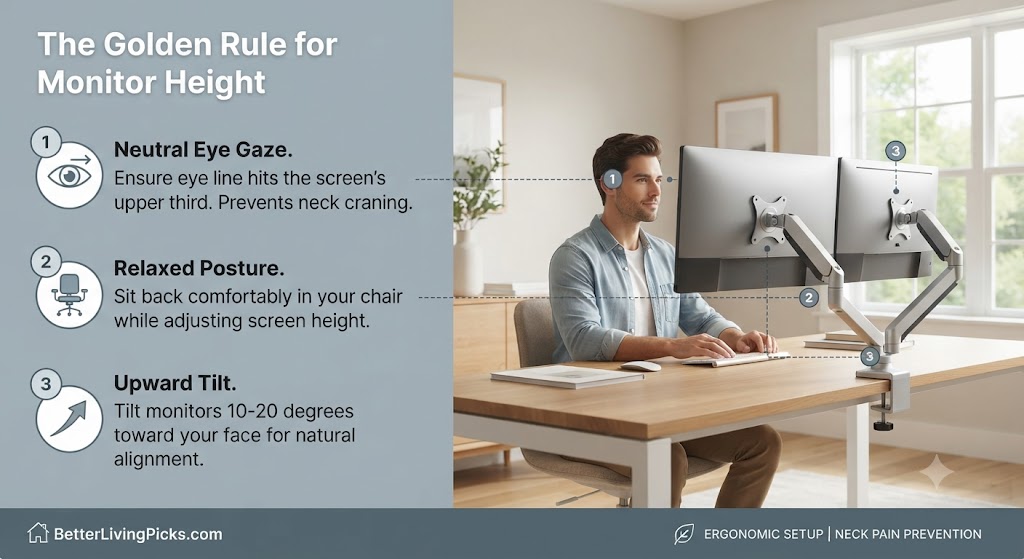
Getting your monitor height right is the most common fix for workstation pain. Most people keep their screens way too low, which forces a constant, subtle hunch. Over an eight-hour day, that slight forward curve destroys your upper back muscles and locks up your cervical spine.
Finding Your Natural Eye Level
Sit in your chair in your normal, relaxed posture. Do not try to sit “perfectly” straight. Close your eyes, take a deep breath, and open them. Look straight ahead without straining your neck. That point where your eyes naturally land is your neutral eye level.
Your goal is to have your screens centered relative to this point. If you find yourself constantly looking down, or worse, arching your neck up to read, your desk setup is working against your anatomy. This is a common “quick fix” failure: people adjust their chair to their desk, rather than adjusting the monitor to their eyes.
The “Top-Third” Rule Explained
For most people, the most comfortable position is placing the top third of the screen at or slightly below your natural eye level. When your eyes are centered in that top third, your gaze is naturally angled slightly downward.
This is exactly how your eyes are built to function. Human eyes are more comfortable looking down, think of reading a book or looking at a tablet. If your screen is too high, you force your eyelids to open wider. This leads to dry eyes, light sensitivity, and much faster visual fatigue. Always prioritize the top-third rule to keep your facial muscles relaxed.
Solving the Dual Monitor Layout Puzzle
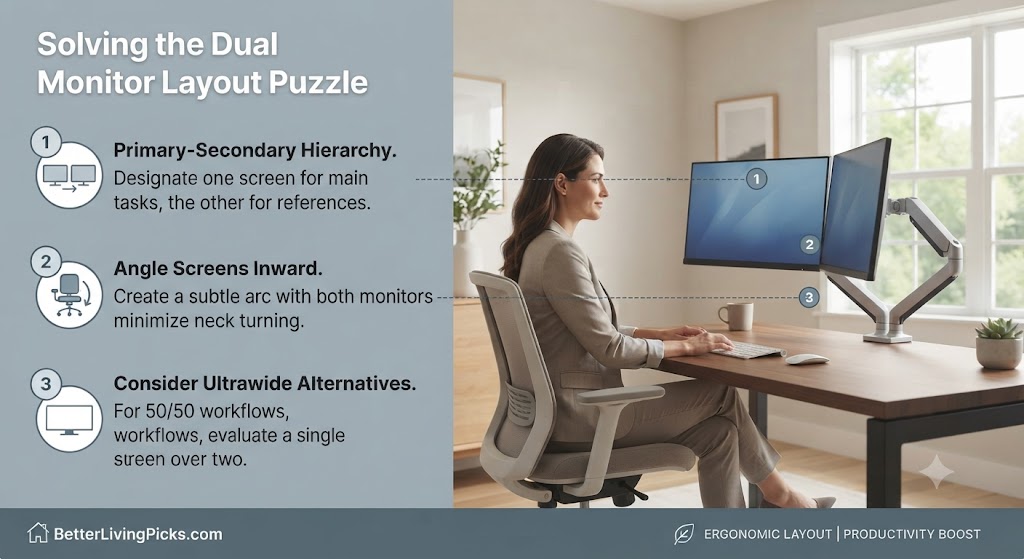
Having two screens creates a massive challenge: where do they go? If you just slap them side-by-side without a plan, you will end up with a “swivel neck” that leads to stiffness by lunch.
Side-by-Side: The Standard Configuration
Most of us use a primary screen and a secondary screen. Place your primary monitor directly in front of you. Your most intensive tasks coding, writing, or design should happen here, perfectly centered to your body.
Angle your secondary monitor inward toward you at about 30 degrees. This creates a soft curve, making it much easier to glance at your secondary screen without having to physically turn your entire torso or twist your neck. The key is to keep the screens close enough so the bezels almost touch.
Stacked Monitors: When and Why to Use Them
If you have limited desk width, stacking your monitors vertically can save your workspace. The main concern here is vertical neck strain.
Place the primary screen at eye level and stack the second one slightly above it, tilted downward. Limit this setup to secondary information like music players, Slack, or reference PDFs. If you force yourself to look up constantly, you will trigger chronic neck pain in no time. Never put your main work-heavy apps on the top monitor.
Avoiding the “Head-Pivot” Problem
The biggest mistake is making both monitors equal in importance. When screens are placed perfectly side-by-side with no hierarchy, your head will pivot back and forth like you are watching a tennis match.
Pick one side to be your “home base.” Keep your most-used applications on that center screen. Only shift your gaze to the side monitor when you absolutely need the extra space. If you are doing 50/50 work, consider getting an ultra-wide monitor instead of two separate ones to eliminate the center gap and the constant pivot.
Perfecting Your Viewing Distance and Tilt
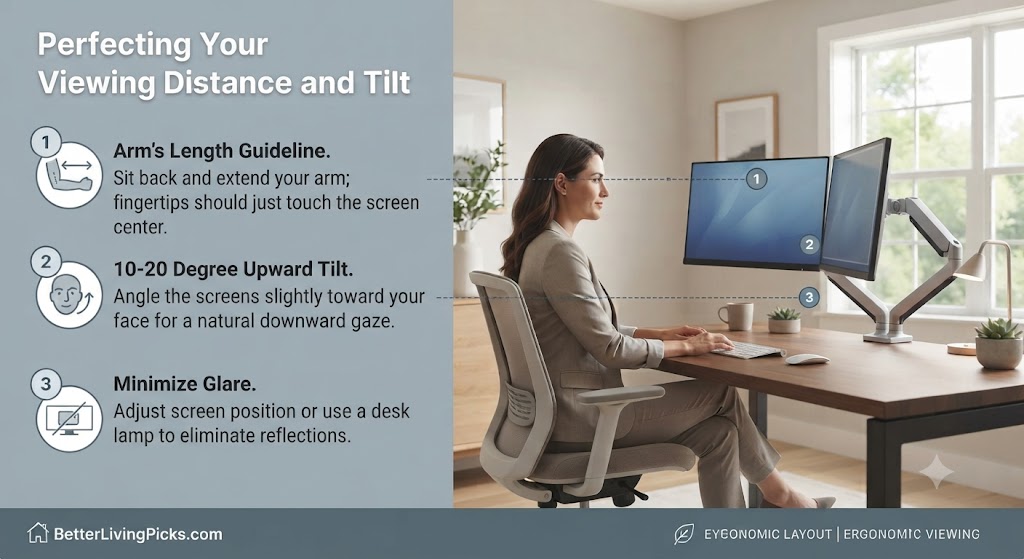
Height is only half the battle. If you aren’t at the right distance, you will find yourself leaning forward, the “turtle neck” posture, which destroys your lower back support and negates any chair ergonomics.
The Arm’s Length Guideline
A good rule of thumb is to sit back in your chair and extend your arm. Your fingertips should just about touch the center of your screen.
If you have to lean forward to read text, do not change your posture. That is a trap. Instead, increase the font size or zoom settings on your operating system. Your back should stay glued to the chair backrest at all times. If you move your chair, you move your support; if you move your eyes/screen, you keep your spine healthy.
Adjusting Tilt to Minimize Glare
Tilt your screens 10 to 20 degrees upward toward your face. This helps align the screen with your natural downward gaze.
Check for glare by looking at your screen when it is turned off. If you see bright reflections from lights or windows, adjust the tilt until those reflections disappear. Glare forces your eyes to struggle for focus, which is a leading cause of end-of-day tension headaches. If your room has overhead lights, you may need to dim them or add a desk lamp to balance the light levels.
Essential Hardware for Ergonomic Adjustments
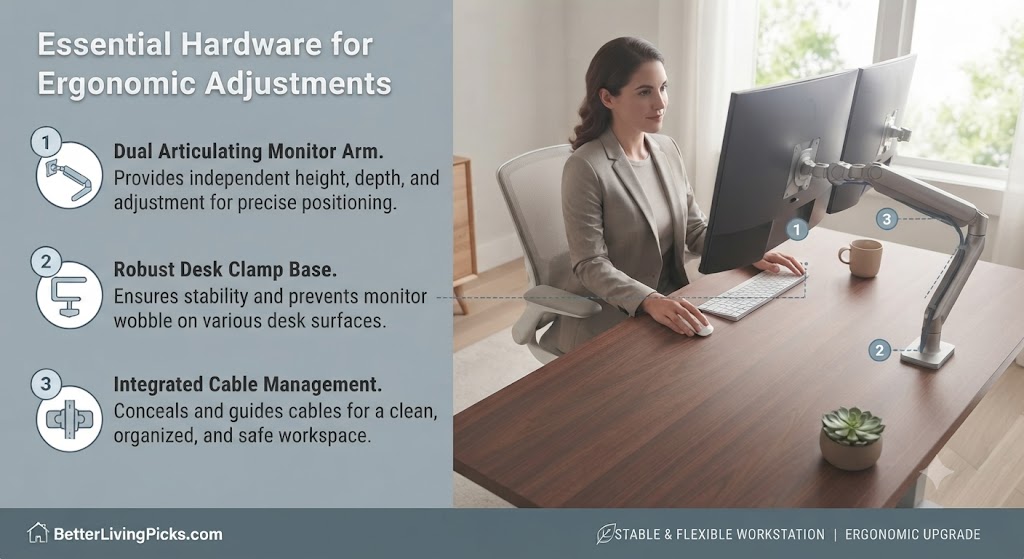
Standard monitor stands are almost always garbage. They are usually fixed in place, meaning you have to stack them on top of books, risers, or boxes to get the height right. This is an unstable, unprofessional, and often dangerous way to handle expensive equipment.
Why Monitor Arms Beat Fixed Stands
Invest in a dual monitor arm. This is the single biggest upgrade you can make for your health. It attaches to the edge of your desk and lets you adjust height, depth, and tilt in seconds.
The beauty of a good arm is that it “floats” the screen. This frees up significant desk space, which makes your workspace feel less cluttered. When you are done with a task, you can push the screens away to give yourself room for a notebook or keyboard adjustment.
The Importance of Desk Stability
If you use a monitor arm, your desk needs to be rock solid. If your desk wobbles when you type, your monitors will shake, which is incredibly distracting and can lead to rapid eye strain.
If your desk is thin or flimsy, look into a reinforcement plate. This distributes the weight of the monitor arm across a larger area so you don’t crack your desk surface. Test your desk by pushing on it before mounting heavy monitors. If it sways, you need a sturdier setup.
Troubleshooting Common Setup Mistakes
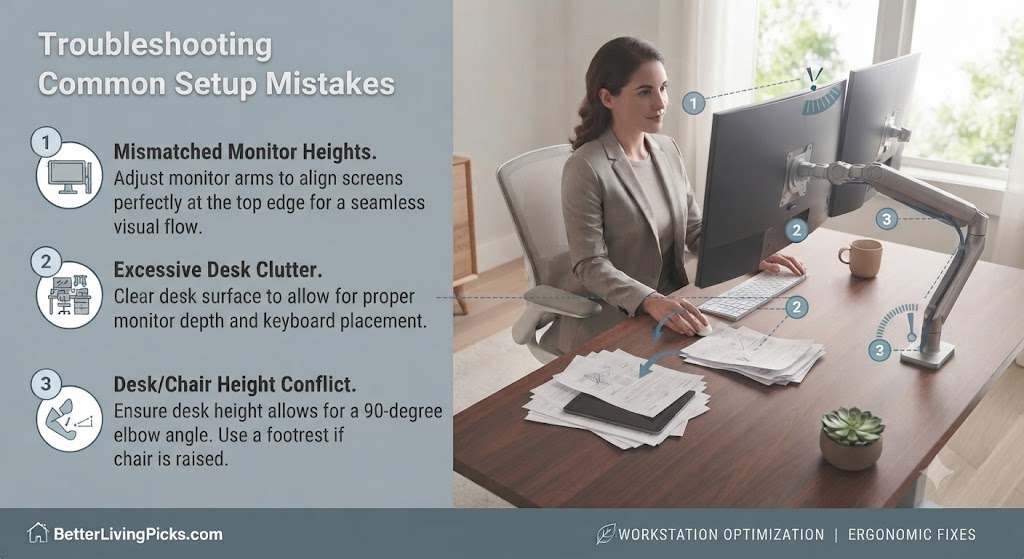
Even with the right gear, weird problems pop up. Don’t stress; they usually have simple, low-cost solutions.
Dealing with Different Monitor Sizes
If you are using two different monitors, don’t try to align their bottoms. Instead, align the screens by their top edges or center their active display areas.
Using an arm allows you to offset the height of one screen to match the other. This creates a seamless visual flow so your eyes don’t have to adjust to a new horizon line every time you move the mouse. It feels like a minor annoyance, but your brain works hard to compensate for misaligned screens all day.
Managing Desk Space Constraints
If your desk is small, don’t feel forced to put both monitors on the desk surface. Use a wall-mount system or a single pole mount that attaches to the back of the desk.
Clear your desk of everything except your keyboard and mouse. Having a clean space makes it easier to pull your monitors closer or push them away as you shift tasks. Most people keep too much junk on their desk, which forces the monitors further back than they need to be.
Correcting Desk Height vs. Chair Height
If you find that even with a monitor arm, your screens are too low, your desk is likely the issue. Your desk should be at a height where your elbows are at a 90-degree angle when you are typing.
If your desk is too high, you will be forced to hike your shoulders up to reach the keys. This leads to massive trap and neck tension. If you cannot lower the desk, raise your chair and use a sturdy footrest. Your feet must be flat on the floor or on a rest to keep your lower back neutral.
Frequently Asked Questions
How do I align monitors of different sizes?
The best approach is to align them based on the top edge of the viewable screen area or by centering the vertical midpoint of both screens. Use a high-quality dual monitor arm to adjust the height of each screen independently so they form a continuous visual plane.
Should I look slightly down or straight ahead?
You should look slightly downward. Your natural, relaxed gaze is angled about 15 to 30 degrees below the horizontal line. Setting the top third of your screen at eye level ensures your eyes are positioned perfectly for this natural downward tilt.
How often should I adjust my monitor height?
You shouldn’t need to adjust it daily, but you should re-evaluate whenever you change your chair or get a new desk. If you feel neck stiffness at the end of the day, that is your signal to check your alignment and see if you have drifted from the “top-third” rule.
Do curved monitors change the ergonomic rules?
Yes, curved monitors actually help improve ergonomics. Because of the curve, the distance from your eyes to the edges of the screen is more consistent. However, you still need to follow the height rule (top third at eye level) and ensure the center of the curve is perfectly aligned with your face.
What if my monitor arm doesn’t go high enough?
If your arm is maxed out, you may need a pole extension or a taller mounting post. Do not try to shimmy the base with books or cardboard. If you are tall, ensure you buy an “extra-tall” monitor arm specifically designed to reach higher elevations.
How does desk depth affect my screen placement?
Deeper desks are better because they allow for more flexibility. On a shallow desk, you are often forced to have the monitors too close, which causes eye strain. Aim for a desk depth of at least 28 to 30 inches to ensure you can maintain that perfect “arm’s length” distance.
Final Thought
Investing time into your monitor height is one of the best things you can do for your long-term health. Most people treat their workstations as static environments, but your body needs an adjustable, dynamic setup to stay pain-free. Take twenty minutes today to move those screens, check your angles, and test the distance. You will be amazed at how much less “heavy” your head feels by the time you clock out. Your neck, shoulders, and eyes will thank you for years to come.